Accouint activation
Hello
I purchased Fences and cannot activate because of firewall settings I cannot modify. Is there any offline activation possible?
best regards,
Andreas
Hello
I purchased Fences and cannot activate because of firewall settings I cannot modify. Is there any offline activation possible?
best regards,
Andreas
Hello,
Sorry to hear you are having issues. Please follow these steps for activation, there is offline activation steps listed there too : https://forums.stardock.com/486311/accounts-and-activation-support-faq#activateproduct
Try it and let us know if you still need our assistance.
Thanks
Basj,
Stardock Community Assistant.
Basj,
it doesnt work to follow your instructions for offline activation.
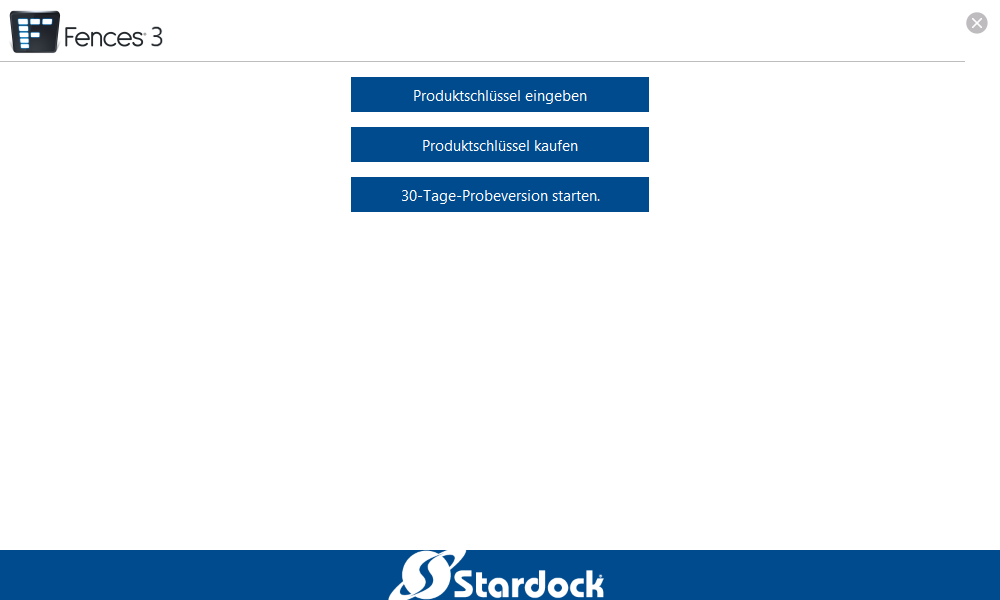
When starting I can only see three blue buttons. Button 1 "Produktschlüssel eingeben" (which is German for "enter product key") does not react on clicks!!
What could I do to activate it?
Regards,
Andreas

Please try these steps :
How to install / activate our current software with the command prompt
Silent Activation:
An alternative method to activating our current applications can be done via the command prompt: cmd.exe
The following command line will activate the application without exposing the UI. Ignore the AppName and hyphen and only copy and paste the quoted text.
Note: If you are connected to a corporate VPN, please disconnect (if possible) before trying the methods below.
Note: The variable -company name ,"Stardock", needs to remain that, Stardock - do not change it to your company name.
Fences 2:
"C:\Program Files (x86)\Stardock\Fences"\SASUpgrade.exe -prodId=2240 -prodName="Fences2" -company="Stardock" -ver="2.13" -email="[email protected]" serial="PRODUCTKEYGOESHERE"
Fences 3:
"C:\Program Files (x86)\Stardock\Fences"\SASUpgrade.exe -prodId=2628 -prodName="Fences3" -company="Stardock" -ver="3.00" -email="[email protected]" serial="PRODUCTKEYGOESHERE"
You can also watch the video below. The example given is for Fences, but can be used for any of the apps above:
http://sd.stardock.com/brad.ather/Jingimages/2014-10-29_1347.swf
(The product key in this example has been disabled.)
Taken from FAQ : https://forums.stardock.com/486311/accounts-and-activation-support-faq#activatecommandprompt
Thank you,
Basj
Stardock Community Assistant.
unfortunately, it doesn´t work.
I have started Cmd-Shell in Admin mode and replaced my email and my product key. But then nothing happens, even in ..\ProgramData\StarDock\Fences3 nothing happens
Best Regards,
Andreas
Hello,
I have forwarded your questions/problems to the Stardock Support team for their assistance. Please keep an eye on this thread for any updates. We appreciate your feedback and patience.
Thank You,
Basj
Stardock Community Assistant.
Hello,
Sorry to hear you are having trouble.
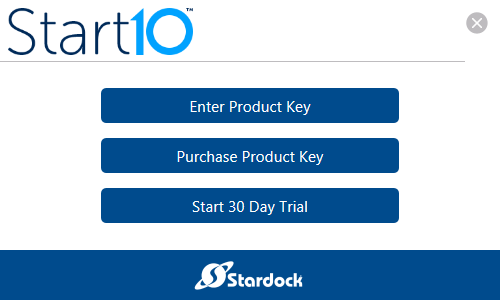
With the Fences (Start10 shown) activation window open - and click to make sure it has focus:

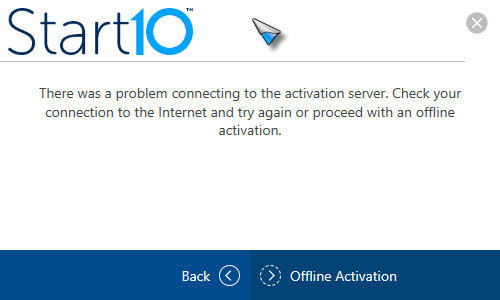
hold Shift then tilde (below the esc key), you will get:

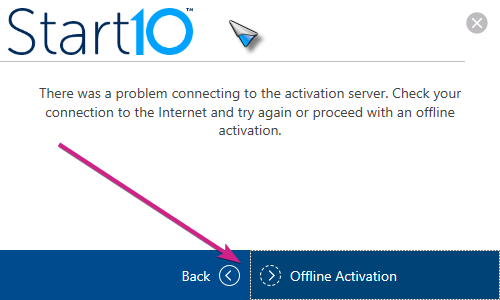
If you cannot click those buttons either, you can use Tab to get to the 'Offline Activation box - you will see the dotted lines, then hit enter...

Sean Drohan
Stardock Support Manager
This doesn´t work either
I need more information than that, Andreas... At what point did the process fail...? How did it fail..?
Sean Drohan
Stardock Support Manager
I will make you a recording of my screen
Now it has magically worked. your shift+tilde symbols don´t have worked. But I tried STRG+Shift with plus (+) or minus (-) and i could zoom inside the registration window -> it zoomed all buttons and then they worked as planned and I could do the offline registration successfully.
Thanks for your support
Andreas
Glad it worked out for you..
Sean Drohan
Stardock Support Manager
Welcome Guest! Please take the time to register with us.