Cannot connect computers on my local network

Multiplicity on my primary computer (desktop) doesn't see a client on my laptop on my home network. I did everything as instructed: turned off firewall, etc,. they both have the same version of a software, freshly installed, both connected via ethernet. Documentation at Multiplicity Connection issues 101 - Documentation - Stardock Help Center istn't helpful (also, is made for an earlier version of the software).

285 views 6 replies
Reply #1 Top

Hello,

Sorry to hear you are having issues. I have forwarded your problem/question to Stardock Support Team for their assistance. Please keep an eye on this thread for any updates. We appreciate your feedback and patience. Thank you.

Basj,

Stardock Community  Assistant

Reply #2 Top

Hi tmikolaj, thank you for posting.

Quoting tmikolaj,

Multiplicity on my primary computer (desktop) doesn't see a client on my laptop on my home network. I did everything as instructed: turned off firewall, etc,. they both have the same version of a software, freshly installed, both connected via ethernet. Documentation at Multiplicity Connection issues 101 - Documentation - Stardock Help Center istn't helpful (also, is made for an earlier version of the software).

End of tmikolaj's quote

While our connection guide was built with some images from the older version, the processes/solutions involved for Multiplicity 4 remain the same.  

Here are a handful of checks to help verify some common things we've seen when going through it:  

  1. Verify Multiplicity is running on both machines.  To do this, make sure the Multiplicity tray icon is visible and active on both the Primary (desktop) and Secondary (laptop). Right-click the tray icon to open the configuration app to confirm it shows the correct role for each machine.
  2. Try connecting by IP address directly.  Rather than relying on hostname discovery, on your desktop open Multiplicity's settings and try adding the laptop by its local IP address. You can find the laptop's IP by running ipconfig in a command prompt.
  3. Check third-party antivirus/security software.  Disabling the Windows Firewall is a good first step, but if you have a third-party antivirus (WebRoot, Malwarebytes, Norton, Bitdefender, etc.), it may have its own network firewall that is still blocking Multiplicity independently. Try temporarily disabling it to test.
  4. Confirm both are on the same subnet. Even on a home network, if one machine is on Wi-Fi and one on ethernet (or connected to a different router/switch), they may be on different subnets. Run ipconfig on both machines and confirm the first three octets of their IP addresses are identical.
  5. Restart the Multiplicity service.  Open services.msc on both machines, find the Multiplicity service, and restart it. Then try reconnecting.

Please let us know if this helps.  If you see any specific error messages or have questions along the way, please let us know.

Thanks again and best regards,

Adam McGuinness
Stardock Support Specialist

Reply #3 Top

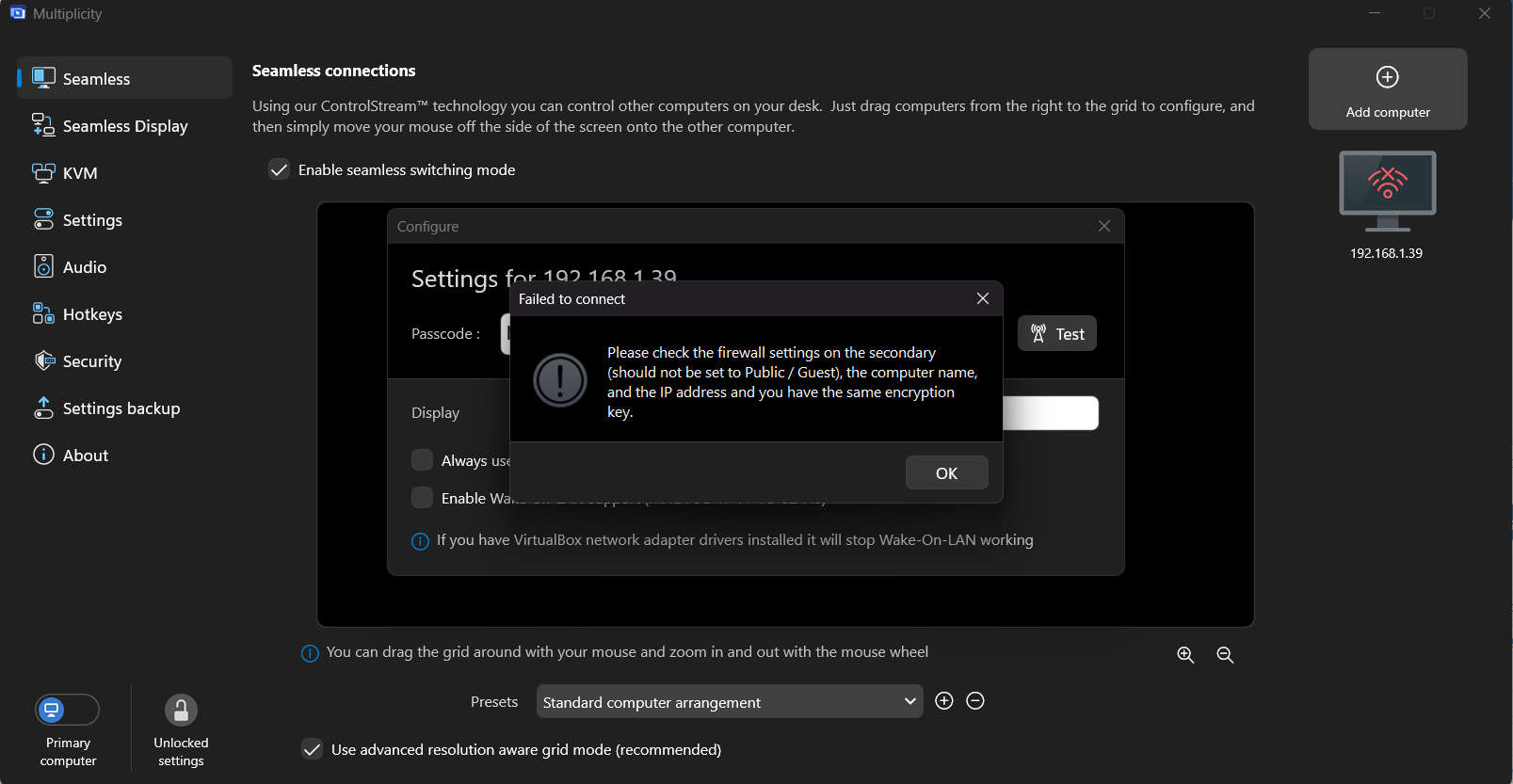
Hi, thank you for the answer. I have Multiplicity running on both machines, and they have correct roles on both computers. I have tried to connect to the IP of the laptop directly. I am not running any antivirus software besides standard Windows Defender. According to the ipconfig they have the same Subnet Mask and Gateway, so I guess they're running on the same subnet, connected via Ethernet to the same switch. I have restarted Multiplicity service on both. This is an error which I am getting:

Reply #4 Top
Quoting tmikolaj,

Documentation at Multiplicity Connection issues 101 - Documentation - Stardock Help Center istn't helpful (also, is made for an earlier version of the software).

End of tmikolaj's quote

The connection mechanisms are the same.

Have you had MP installed in the past and it worked... or no, this is the 1st time you have used MP and it has never worked?

From your Primary PC, can you 'ping' your Secondary PC?

Sean Drohan
Product Lifecycle Manager

Reply #5 Top

Hi, thank you for your answer.

I have purchased MP several days ago, and it has never worked before. So this is the first time I used MP.

Yeah, I cannot ping my secondary PC from my primary PC either. Not sure what's going on: I have Firewall turned off on both computers, both have a Private network profile, they're on the same subnet, File and Printer Sharing (ICMPv4) is enabled on both, they're not connected to any VPN or anything like that, there seems to be no setting on the router which would block file sharing. Ping error message is "Request timed out."

Reply #6 Top
tmikolaj -


Did you ping using the computer name or the IP address?
This is a "just in case" item. I have two secondaries: one can be pinged one using either IP address or computer name while the other can be pinged only using the IP address. I never tried to set up hostname resolution as I do not need it. The one that can be pinged by name is likely a side effect of it having been set up to share a file system on the LAN.