Start11 v2.72 Release Feedback

With the Start11 v2.72 release today, we are creating this thread so that users can report any observed issues.  

Obtaining the product

Object Desktop members can get the release from within Object Desktop Manager 

Individual purchases (as well as Object Desktop Members) can also be obtained from your account page: https://store.stardock.com/myaccount/products

For guest check-out purchase (no account), from this link: http://www.stardock.com/support/productkeyretrieval

Reporting an issue

Please include the following for anything found:

  • Exact Windows version \ build (winver.exe)

  • Detailed steps to recreate the issue seen

  • Screenshots and videos are very helpful.  Videos can be uploaded to a cloud drive service (GoogleDrive, DropBox, OneDrive, YouTube), with a shared link included in your post.  Images can be copied and pasted directly into a post.

  • If there are specific apps that the app does not work (well) with, please note what apps and their exact versions.  If any app is not common, a link to a trial version would be appreciated.


647 views 19 replies | Pinned
Reply #1 Top

Start11 v2.72 Changelog (Released 06/01/2026)

Date

06/01/2026

Version

UI: 2.72
File Version: 2.7.2.0

Changes

  • Addresses the issue with icons on secondary displays when to the left of the primary monitor and autohide is enabled (or taskbar on left/right/top is in use)

  • Fix for desktop icons appearing under the taskbar when in ‘Only hide when a window is maximized or overlapping the taskbar’ mode, and the taskbar is at the top or left of the monitor

Reply #2 Top

Known issues

While we appreciate all feedback, please remember that we offer no official support for beta \ preview \ developer channel versions of Windows. If you report issues while in any of those early release channels, you should not expect them to be addressed unless it still exists in a retail version of Windows.

  •  tbd
Reply #3 Top

***Reserved***

Reply #4 Top

Since installing this update on a multi-display setup my icons move to a different location every time I boot the machine.  I also get random results when I try to order the icons.  Sometimes they all just jump to spots of their own choosing.

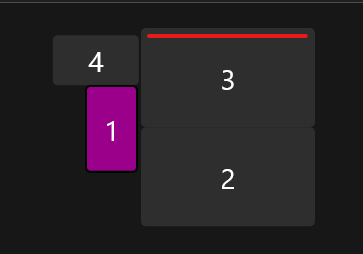
The taskbar is at the top of display 3 as shown here.   

Hardware specs are: 

Processor	Intel(R) Core(TM) i9-10900 CPU @ 2.80GHz (2.80 GHz)
Installed RAM 64.0 GB (63.9 GB usable)
Graphics card NVIDIA Quadro P4000 (8 GB)
Intel(R) UHD Graphics 630 (128 MB)
Storage 715 GB of 3.18 TB used


Reply #5 Top
Quoting dr.gerg, reply 3994177

Since installing this update on a multi-display setup my icons move to a different location every time I boot the machine.  I also get random results when I try to order the icons.  Sometimes they all just jump to spots of their own choosing.

The taskbar is at the top of display 3 as shown here.

End of dr.gerg's quote

Hello,

Sorry to hear you are having issues. First, Please try, uninstall Start11, reboot immediately (important), download latest version available in your account product download page: https://store.stardock.com/myaccount/products. Install it, reboot immediately again. Retest it and report back.

If the issue still appear. Need few more details.

  1. Windows 10 or 11? Also need its full version and OS Build number.
  2. When you said "My icons move" its your desktop icons or your Start11 Start menu tiles? 
  3. Post a video or a screenshot might help us understand your issue.

Thank you,

Basj,

Stardock Community  Assistant.

Reply #6 Top

After installing v2.72, I no longer have a notification area on the taskbar.

I have two displays with the taskbar at the bottom, and my left display is the main display. A reboot does not help. I have tried with and without the enhanced taskbar, with no difference in the notification area.

Reply #7 Top
Quoting GuruGurra, reply 3994245

After installing v2.72, I no longer have a notification area on the taskbar.

I have two displays with the taskbar at the bottom, and my left display is the main display. A reboot does not help. I have tried with and without the enhanced taskbar, with no difference in the notification area.

End of GuruGurra's quote

Hello,

Sorry to hear you are having issues. Please try, uninstall Start11, reboot immediately (important), download latest version available in your account product download page: https://store.stardock.com/myaccount/products. Install it, reboot immediately again. Retest it and report back.

If the issue still appear, we need few more information.

  1. You on Windows 10 or 11? Also need its full OS Build number. Use Winver.exe to get this number.
  2. Do you have any other 3rd party application installed that also change how your taskbar work or look. For example, DisplayFusion, StartAllBack, ExplorerPatcher etc.
  3. Please post screenshots or videos showing us your issue.

Thank you,

Basj,

Stardock Community  Assistant.

Reply #8 Top
Quoting GuruGurra, reply 3994245

After installing v2.72, I no longer have a notification area on the taskbar.

I have two displays with the taskbar at the bottom, and my left display is the main display. A reboot does not help. I have tried with and without the enhanced taskbar, with no difference in the notification area.

End of GuruGurra's quote

If thats not showing without enhanced taskbar then it is unlikely to be Start11 causing that.

As a test if you enable the option to disable all Start11 taskbar features (on the Start11 taskbar settings page), does it come back?

Reply #9 Top

I'm using Windows 11 25H2, build 26200.8655

I disabled all Start11 taskbar features, and there's still no notification area. 

I realize that the reboot after installing 2.72 also installed a couple of Windows updates, which could have caused the problem. The situation is a bit odd at the moment. 

  • When I checked Windows Update, it claimed that an installation of update KB5094126 had failed. After a retry, it concluded that this update wasn't meant for my system (...don't remember the exact wording, but the message was that it shouldn't have been tried in the first place).
  • Windows Update history says that KB2565063 was installed during the reboot. A try to uninstall it gives an "uninstall failed" error (0x8007066F). Having canceled the uninstall, Windows Update no longer claims it has been installed (?)
Is there somewhere I can download the previous version of Start11, just to definitively verify that it was the Windows update (whatever is left of it...) that caused the problem?
Reply #10 Top

I am unsure if Grouping of tabs is not working properly.  I opened one instance of an application, and then opened another instance of it.  I'm not sure what I did exactly, but one point the taskbar was showing the two instances as one icon with a shadow icon behind it (that is the way it should be).  But when I hover over it, the two instances do not appear above it.  Later, it was showing separate icons for the two instances.  That's better behavior than the first case, but it is not obeying the Windows setting of "Combine taskbar buttons and hide labels", which I have set to "Always".  I just opened a 3rd instance of the application, and now it is showing three separate icons in the taskbar.  When I hover over the newly-opened 3rd instance, the three instances appear above it, like it should.  But for the first two, nothing is displayed above the icon when I hover over it.  As I type this, I have gone back to Windows Explorer to verify what I had done, and now it has been collapsed into two icons.  One of the icons shows a single instance, and nothing appears above it when I hover over it.  The other icon shows a shadow, suggesting it represents multiple instances, but when I hover over it, nothing appears above it.  When I click on it, one of the instances is brought to the foreground.  Click on it again, and it is minimized.  I can do that repeatedly, and the same instance is maximized and minimized.  If I Alt-Tab to the other instance, now when I left-click on the taskbar icon, that instance is repeatedly maximized and minimized.  I just opened a 4th instance, and the icon for the 4th instance works as it should.  All 4 instances appear above the icon when I hover over it.  I've been clicking around and I can't get it to change.  The 4th icon works as expected.  But this icon does not have a shadow behind it!  At the bottom of each icon is either a short horizontal bar or a wide one, showing whether it is selected or not.  It is correctly showing which one is selected.  Hopefully these clues are enough to figure out what is going on.

Thanks,

Greg

Reply #11 Top
Quoting ElectronHerder, reply 3994289

I am unsure if Grouping of tabs is not working properly.  I opened one instance of an application, and then opened another instance of it.  I'm not sure what I did exactly, but one point the taskbar was showing the two instances as one icon with a shadow icon behind it (that is the way it should be).  But when I hover over it, the two instances do not appear above it.  Later, it was showing separate icons for the two instances.  That's better behavior than the first case, but it is not obeying the Windows setting of "Combine taskbar buttons and hide labels", which I have set to "Always".  I just opened a 3rd instance of the application, and now it is showing three separate icons in the taskbar.  When I hover over the newly-opened 3rd instance, the three instances appear above it, like it should.  But for the first two, nothing is displayed above the icon when I hover over it.  As I type this, I have gone back to Windows Explorer to verify what I had done, and now it has been collapsed into two icons.  One of the icons shows a single instance, and nothing appears above it when I hover over it.  The other icon shows a shadow, suggesting it represents multiple instances, but when I hover over it, nothing appears above it.  When I click on it, one of the instances is brought to the foreground.  Click on it again, and it is minimized.  I can do that repeatedly, and the same instance is maximized and minimized.  If I Alt-Tab to the other instance, now when I left-click on the taskbar icon, that instance is repeatedly maximized and minimized.  I just opened a 4th instance, and the icon for the 4th instance works as it should.  All 4 instances appear above the icon when I hover over it.  I've been clicking around and I can't get it to change.  The 4th icon works as expected.  But this icon does not have a shadow behind it!  At the bottom of each icon is either a short horizontal bar or a wide one, showing whether it is selected or not.  It is correctly showing which one is selected.  Hopefully these clues are enough to figure out what is going on.

Thanks,

Greg

End of ElectronHerder's quote

Hello,

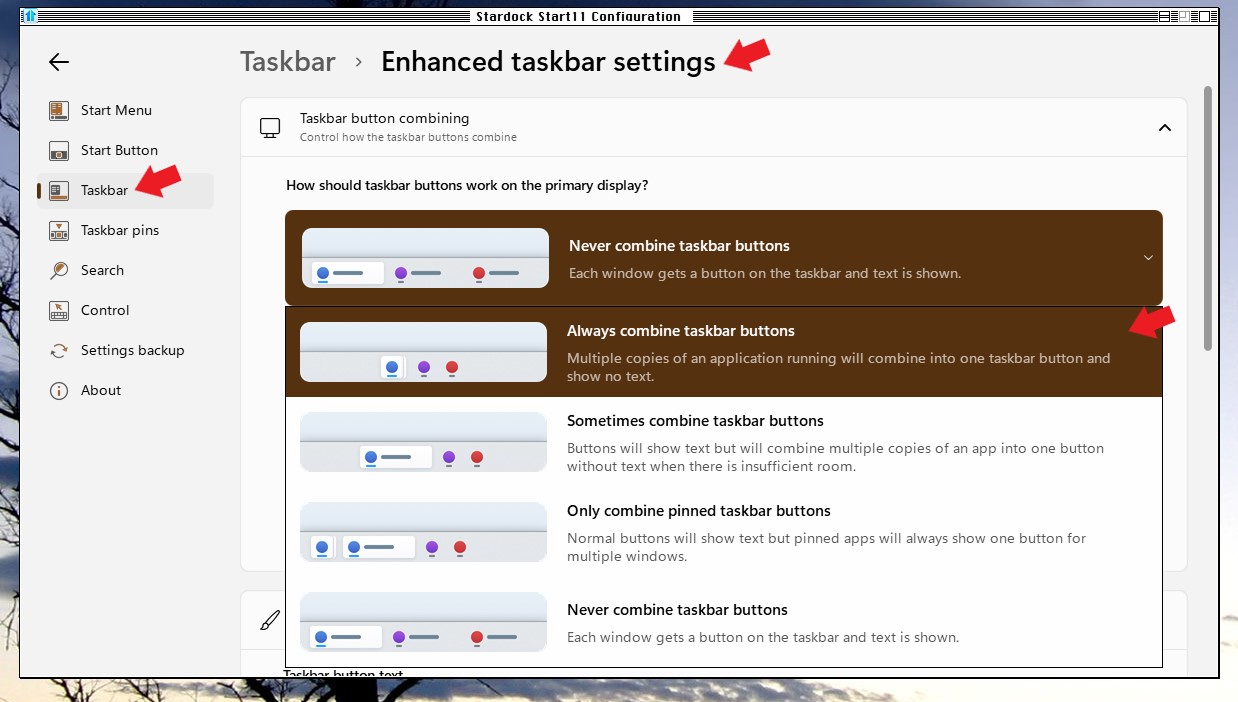
Sorry to hear you are having issues. Do know that if you have turn on Start11 taskbar enhance, the control for the taskbar button is under Start11 taskbar-> Enhanced taskbar settings -> Taskbar button combining setting. Do note that you can set different behavior for secondary display's taskbar. 

Thank you,

Basj,

Stardock Community  Assistant.

Reply #12 Top

Hi Basj,

Thanks for the information.  I looked at the settings, and I had chosen the Always combine taskbar buttons option before, and had forgotten about it.  I experimented with it some more, turning it on and turning it off.  At one point when I hovered over the application's icon, it showed my e-mail client!  It seems to be working now.  Restarting Explorer helped.  I'll have to pay more attention and see if I can determine if there is any one thing or sequence of things that makes it get confused.  All of the other applications (such as multiple browser windows) work correctly.  But one difference between all of the different apps is that this is the only one that has multiple instances of the app.  I assume the Brave browser and Adobe Acrobat have one instance of the app, with multiple windows for each browser window or PDF file I have open.

Thanks again for the help.

Regards,

Greg

Reply #13 Top

I was just shutting down my computer, so I started closing apps.  After closing several of them, I experienced the issue of the wrong app being displayed above the icon when I hover with the mouse over the icon.  I took a screenshot, but the mouse cursor was not captured, so you'll have to take my word for it where the mouse was.  Here is the screenshot:
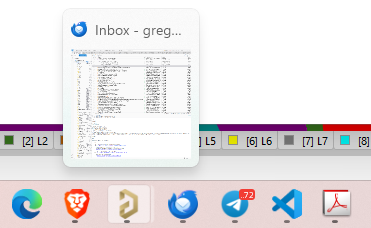
The mouse is over the icon for Altium Designer, but and you can see there are multiple instances of Altium Designer running because the icon shows a shadow.  The icon to the right is Thunderbird, which is being shown above the Altium Designer icon.  When hovering over the Brave browser icon, it shows the 4 windows I had open.  All of the icons to the right of the Altium Designer icon were shifted, but to the left they were OK.  In other words, hovering over the Thunderbird icon showed Telegram, and hovering over Telegram showed Microsoft Code, etc.  But interestingly, as I type this, the problem has resolved itself.  I'll have to continue monitoring this to look for more clues.  Maybe Altium was taking a long time in shutting down?  And Windows was reporting the wrong information to Start11?  And eventually after Altium was completely gone, then the display caught up?

This isn't a big deal, since apps aren't being corrupted or anything like that.  I can Alt-tab to get to instances that aren't being displayed on the taskbar.  Hopefully more clues will present themselves.

Regards,

Greg

Reply #14 Top
Quoting ElectronHerder, reply 3994340

I was just shutting down my computer, so I started closing apps.  After closing several of them, I experienced the issue of the wrong app being displayed above the icon when I hover with the mouse over the icon.  I took a screenshot, but the mouse cursor was not captured, so you'll have to take my word for it where the mouse was.  Here is the screenshot:

The mouse is over the icon for Altium Designer, but and you can see there are multiple instances of Altium Designer running because the icon shows a shadow.  The icon to the right is Thunderbird, which is being shown above the Altium Designer icon.  When hovering over the Brave browser icon, it shows the 4 windows I had open.  All of the icons to the right of the Altium Designer icon were shifted, but to the left they were OK.  In other words, hovering over the Thunderbird icon showed Telegram, and hovering over Telegram showed Microsoft Code, etc.  But interestingly, as I type this, the problem has resolved itself.  I'll have to continue monitoring this to look for more clues.  Maybe Altium was taking a long time in shutting down?  And Windows was reporting the wrong information to Start11?  And eventually after Altium was completely gone, then the display caught up?

This isn't a big deal, since apps aren't being corrupted or anything like that.  I can Alt-tab to get to instances that aren't being displayed on the taskbar.  Hopefully more clues will present themselves.

Regards,

Greg

End of ElectronHerder's quote

Perhaps, something not installed properly, Please try, uninstall Start11, reboot immediately (important), download latest version available in your account product download page: https://store.stardock.com/myaccount/products. Install it, reboot immediately again. Retest it and report back.

Thank you,

Basj,

Stardock Community  Assistant

Reply #15 Top

能否给win10样式添加一个搜索按钮呢?我很喜欢win10样式的磁贴,但是win10没有搜索按钮,我知道可以直接在开始菜单里直接搜索,但没有搜索框会让我觉得很别扭。

Can I add a search button to win10 style?I like the win10 style tiles very much, but win10 does not have a search button. I know that I can search directly in the start menu, but the lack of a search box makes me feel awkward

Reply #16 Top
Quoting Vidyflan, reply 3994521

能否给win10样式添加一个搜索按钮呢?我很喜欢win10样式的磁贴,但是win10没有搜索按钮,我知道可以直接在开始菜单里直接搜索,但没有搜索框会让我觉得很别扭。

Can I add a search button to win10 style?I like the win10 style tiles very much, but win10 does not have a search button. I know that I can search directly in the start menu, but the lack of a search box makes me feel awkward

End of Vidyflan's quote

Hello,

Sorry to hear you are having issues. But, unfortunately, there is no such option available.

Thank you,

Basj,

Stardock Community  Assistant.

Reply #17 Top

期待你们未来能够给win10样式的菜单增加一个选项,选了这一个选项后能够给win10样式的菜单添加搜索按钮

I hope you can add an option to the win10 style menu in the future. After selecting the option, you can add a search button to the win10 style menu.

Reply #18 Top
Quoting Vidyflan, reply 3994523

期待你们未来能够给win10样式的菜单增加一个选项,选了这一个选项后能够给win10样式的菜单添加搜索按钮

I hope you can add an option to the win10 style menu in the future. After selecting the option, you can add a search button to the win10 style menu.

End of Vidyflan's quote

Hello,

I have forwarded your request to the Stardock Support Team for their review and recommendations. Please keep an eye on this thread for any updates. We really do appreciate your feedback, Thanks

Basj,

Stardock Community  Assistant.

Reply #19 Top

Disclaimer:  FULLY aware there is no support for "Release Preview" channel 😊...reporting for the good of the cause...

OS: Windows 11 Pro Workstation 25H2

Build: 26200.8728

Experience: Windows Feature Experience Pack 1000.26100.334.0

Start11 v2.72

Behavior: I've noticed that when I enable the enhanced taskbar and move the taskbar the left vertically, I now lose the ability to click the icons in the task tray.  The app icons in the main taskbar are still fully functional though.  If all I do is move it back to the bottom, but keep all the enhancements, the task tray icons become active again (hover, click) ...Just curious if this is a known defect