Fences loses icon position after windows wake up

Fences will lose location of icons when system wakes up - they all end up aligned on the left edge. I have a dual monitor - icons stay on the correct monitor, just in the wrong place. Can be restored to an older version.

This use to happen very occasionally, now much more frequently. 

===

Fences 6.52, 

Microsoft Windows 11 Home,

vrsn: 10.0.26200 Build 26200

Moved to Fences area


.

582 views 5 replies
Reply #1 Top

Hello,

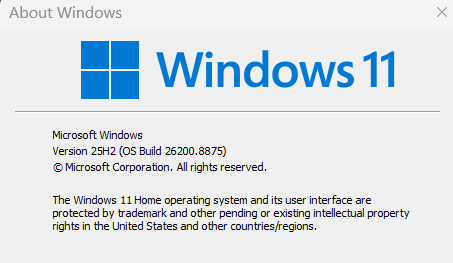
Sorry to hear you are having issues. Need to know your Windows 11 full version and OS Build number. Use Winver.exe to get these number. Also when it happen if you restart "Explorer.exe" does the issue resolve itself?

Thank you,

Basj,

Stardock Community  Assistant.

Reply #2 Top

Here is windows version. 

By restarting Explorer - as in restarting file explorer, or restarting from a command prompt?


Reply #3 Top
Quoting markeh, reply 3996701

By restarting Explorer - as in restarting file explorer, or restarting from a command prompt?

End of markeh's quote

Anyway, as long as Window Explorer get restarted. Both should do the same thing as long as it is done properly.

Here list of how to restart Explorer.exe.


How to Restart Explorer.exe in Windows 11:

Method 1: Restart via Task Manager

1. Press Ctrl + Shift + Esc to open Task Manager.

2. Go to the Processes tab.

3. Find "Windows Explorer".

4. Right‑click and select "Restart".


Method 2: End Task & Relaunch

1. Open Task Manager (Ctrl + Shift + Esc).

2. Right‑click "Windows Explorer" → End task.

   (Desktop and taskbar will disappear temporarily.)

3. In Task Manager, click File → Run new task.

4. Type explorer.exe and press Enter.


Method 3: Command Prompt / Run Box

1. Press Win + R to open Run.

2. Type:

   taskkill /f /im explorer.exe

   start explorer.exe

3. Press Enter.


Thank you,

Basj,

Stardock Community  Assistant

Reply #4 Top

Restarting explorer (using task manager) has no effect. 

Restoring to the correct locations just before a reboot, or signing out and then signing back in results in everything at the correct place. Somehow time, as in overnight or several hours when the system automatically signs out, seems to cause the problem. 

It seems pretty clear to me this is a bug. Is there any way to report it as such??


.


Reply #5 Top

Hello,

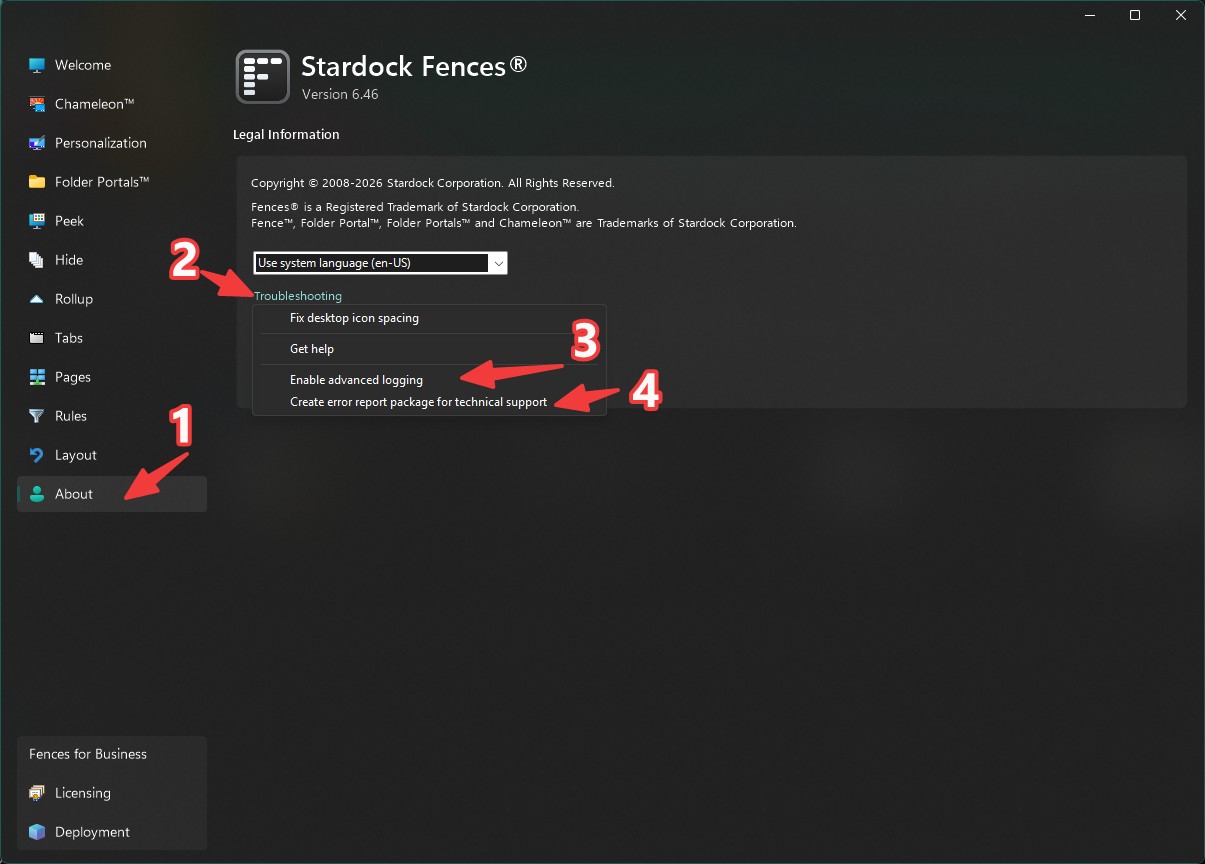
This looks like an issue need advanced logging to investigate further. Could you please generate and send in a report?

Steps:

  1. Open the About dialog and enable Advanced Logging.

  2. Log out and back in (or reboot).

  3. Reproduce the issue by following the same steps you normally take.

    • Repeat the process several times if possible.

    • Include actions such as restoring backups or other fixes you attempt.

    • Document the steps you take as clearly as you can.

  4. Once you’ve reproduced the problem a couple of times, go to Create Error Report Package.

  5. Follow the prompts to upload the report directly.

Thanks for helping us gather the details we need to diagnose this properly.


Thank you,

Basj,

Stardock Community Assistant