Start11 menu background blur and taskbar transparency gone

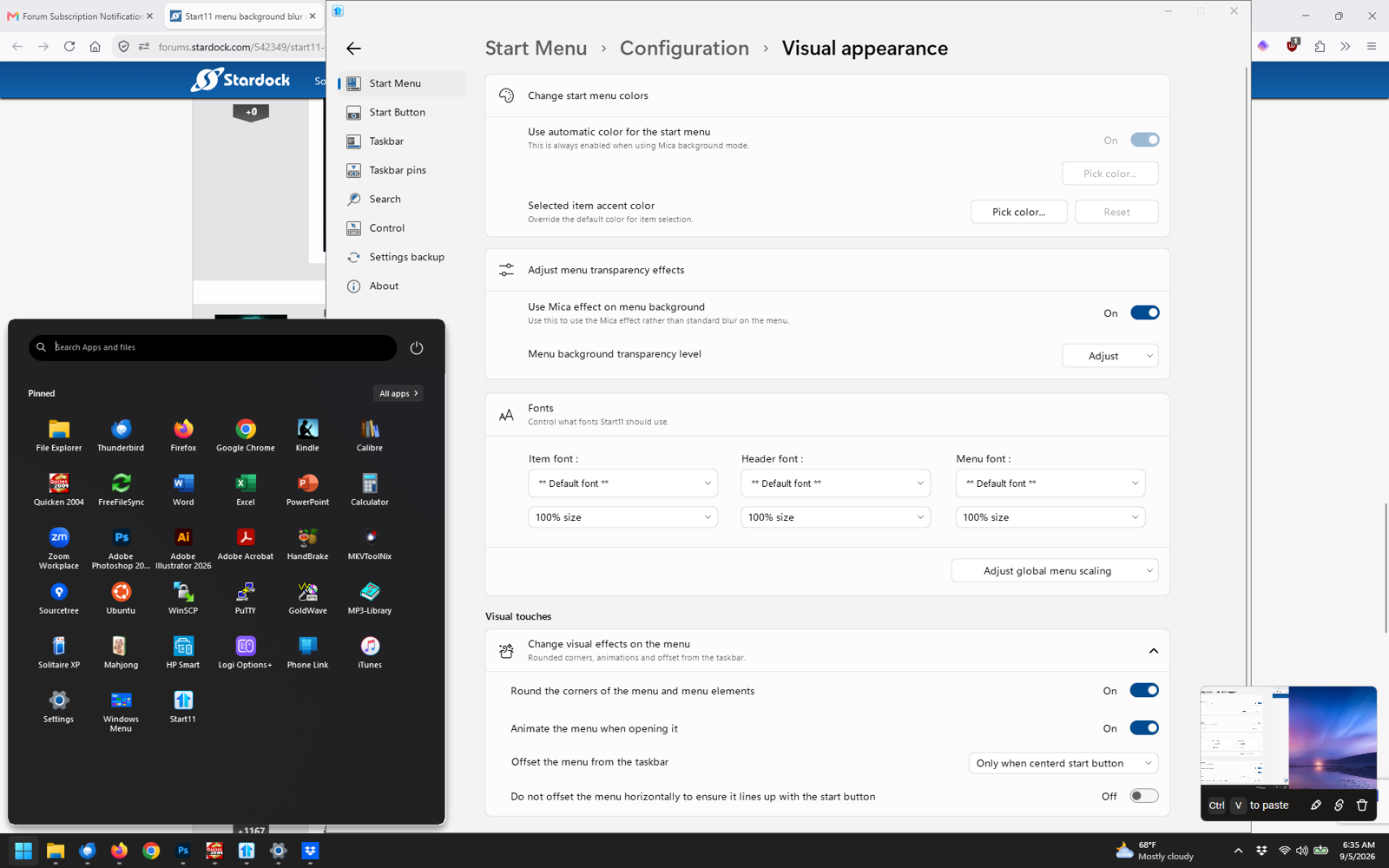
I just updated Star11 to v2.8 and my taskbar and start menu blur and taskbar transparency are gone on Windows 11 Home version 25H2 build 26200.9168.

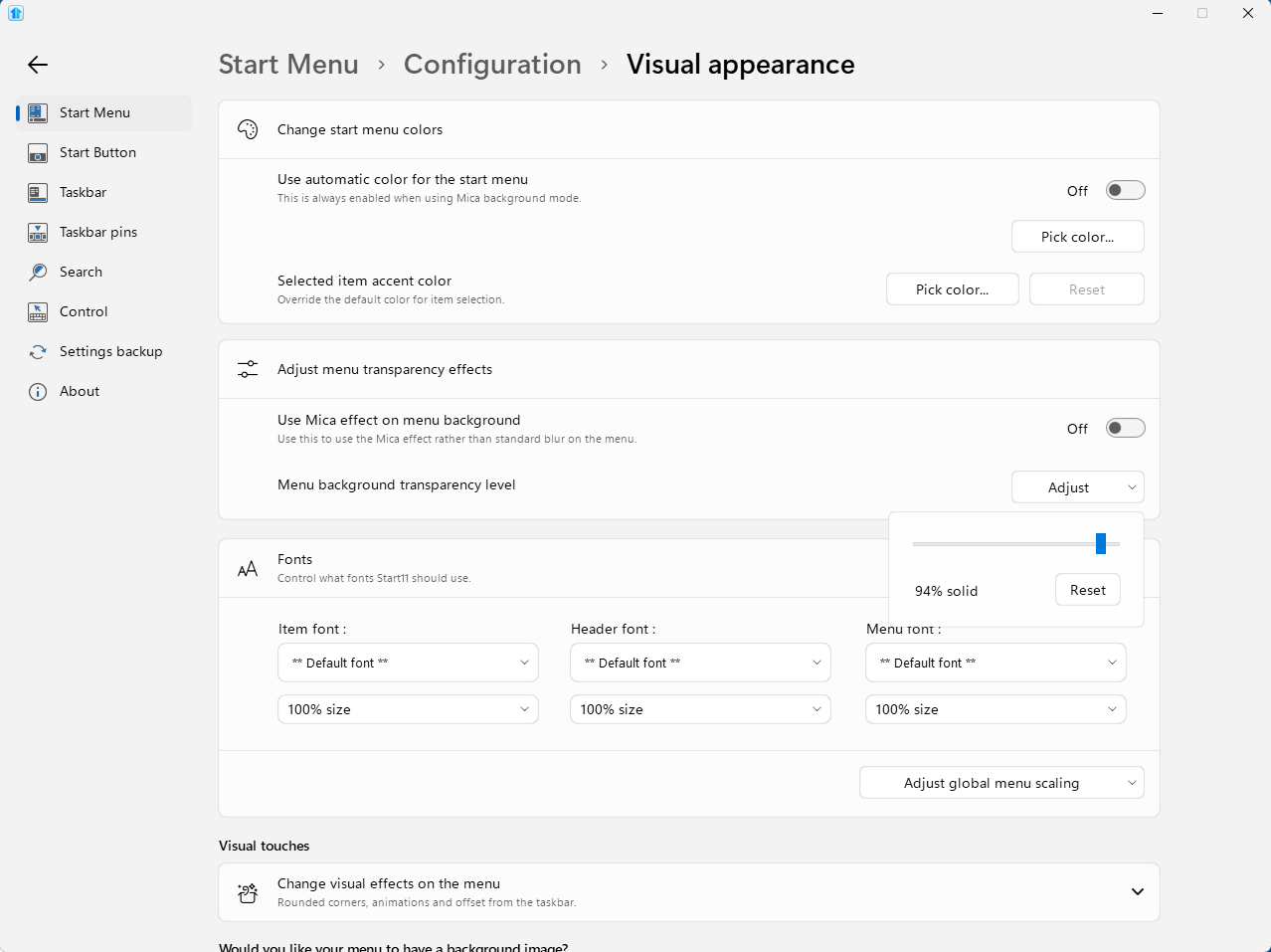
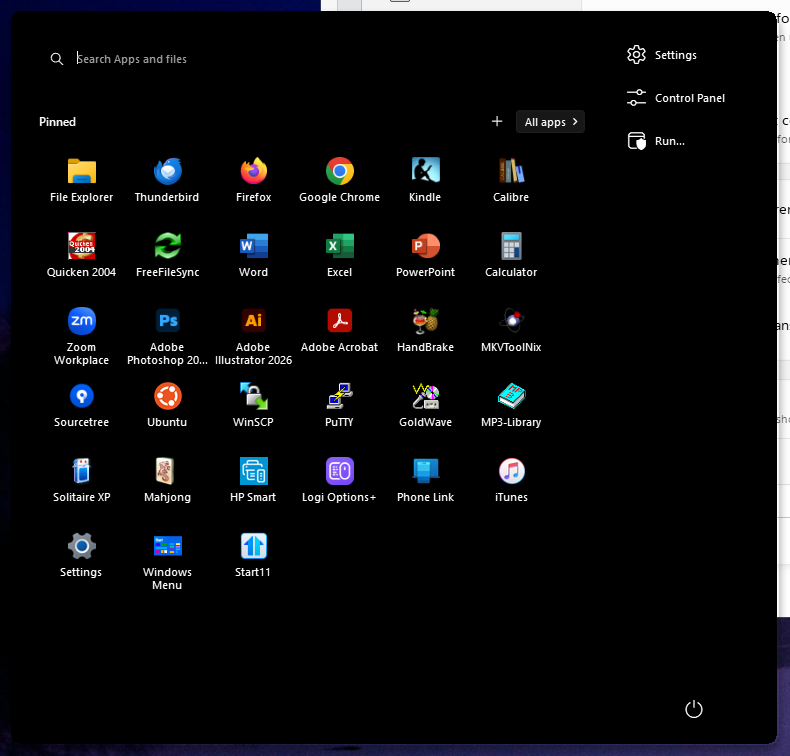
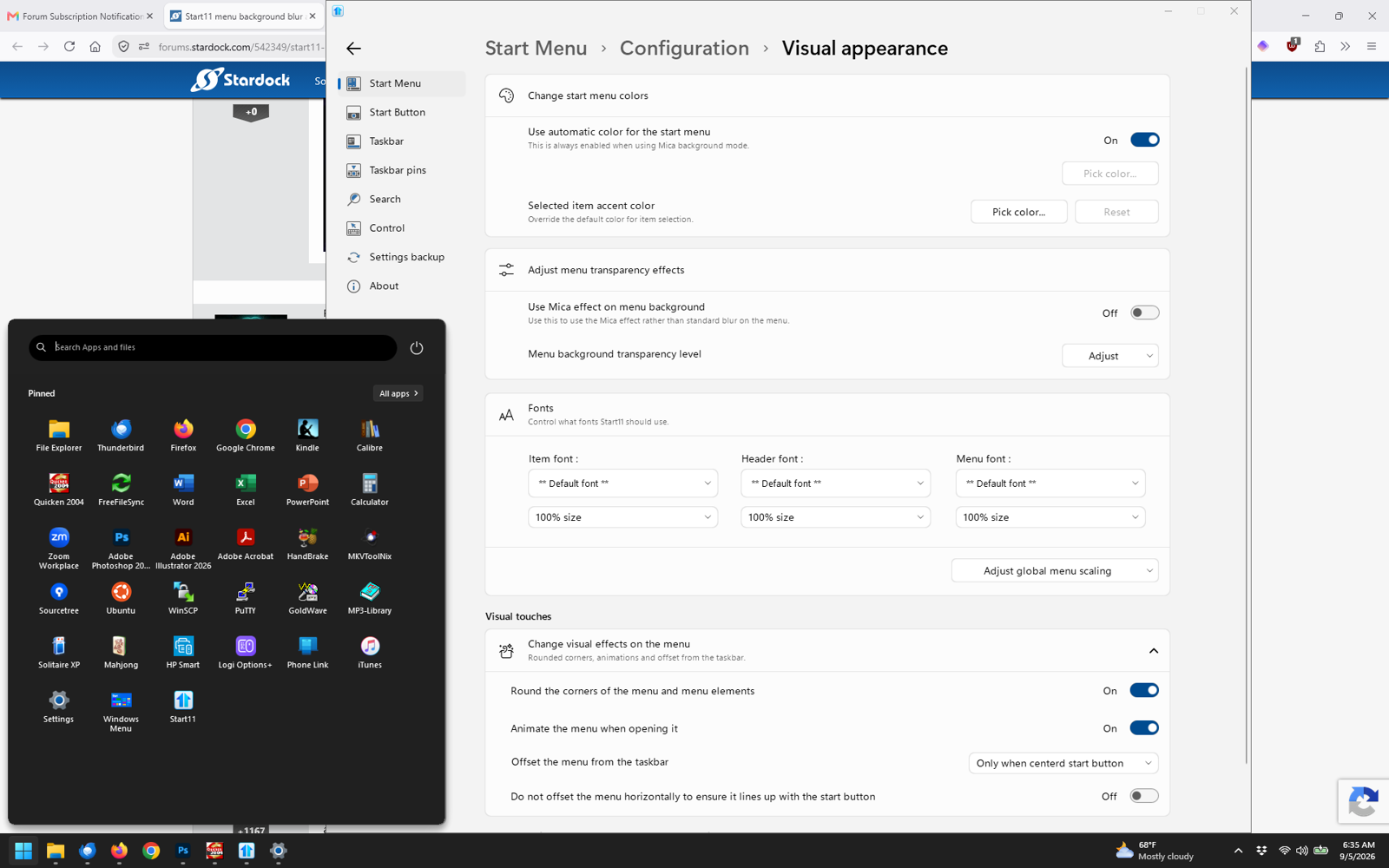
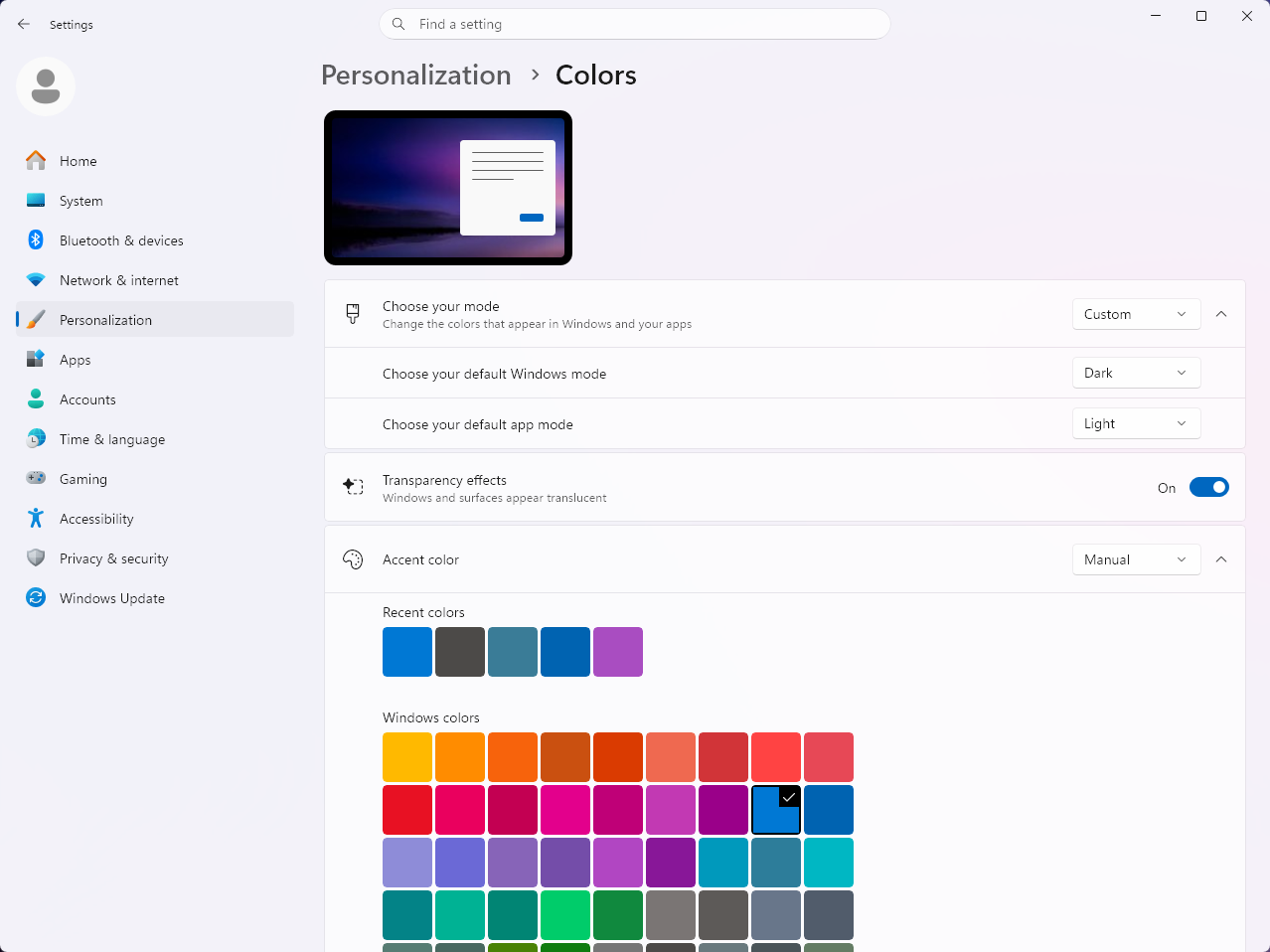
Transparency in Windows settings is enabled. If I toggle it off and back on, taskbar transparency comes back. But when I click Start, and the Start11 start menu opens, transparency goes away. My Start11 transparency setting is 94% (I think that's default) and Mica effect is disabled. I've reset Start11 and restarted the machine several times to no avail.
 

668 views 16 replies
Reply #2 Top
Quoting doughb,

My Start11 transparency setting is 94%

End of doughb's quote

11% is the most transparent and 94% would be almost sold or opaque. Set your transparency lower.

Reply #3 Top

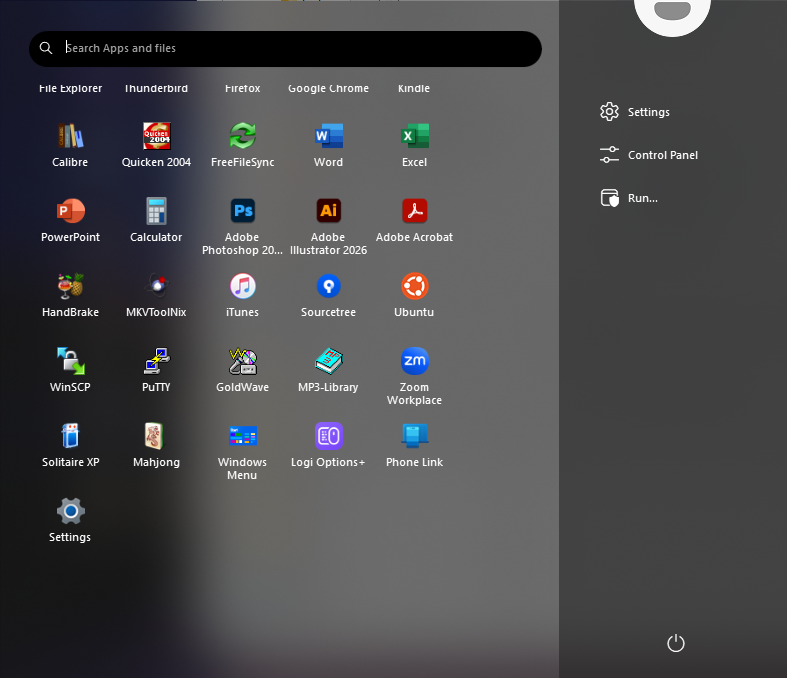
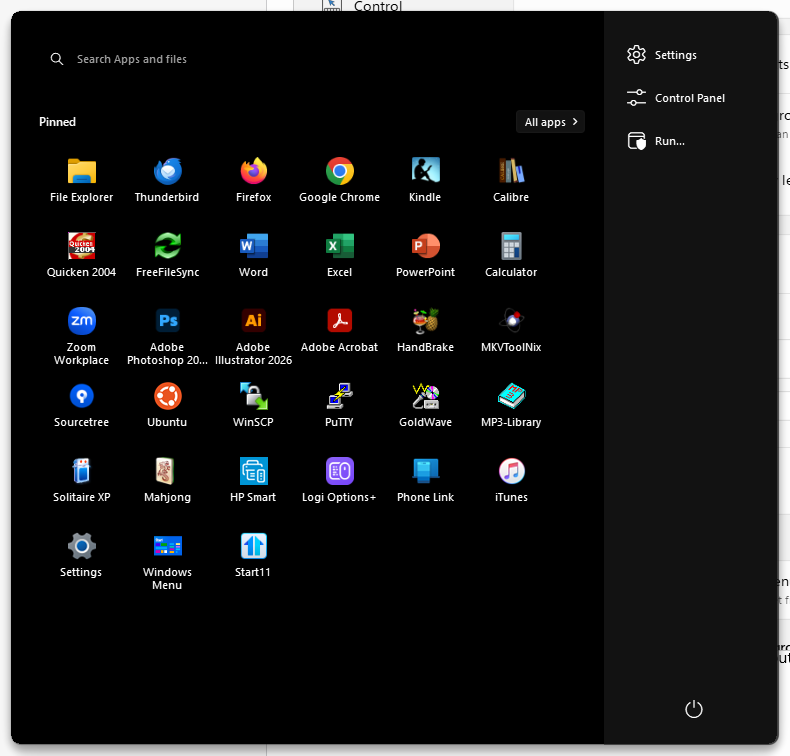
This is what setting it to 11% looks like. As I mentioned, 94% is the default, which is how it was set before.

Reply #4 Top

94% is the default for that slider, so it is worth putting it back where you had it. Our own before and after examples for the menu are both taken at 94%, and what changes between them is the Mica toggle rather than the slider position.

Mica is the option in that same section, and it is the one that controls the material effect behind the menu. Turning it on is the quickest way to tell whether the blur you are missing sits on the Mica path or somewhere else.

The taskbar is a separate pair of controls, under Taskbar and then Taskbar Looks: "Blur the wallpaper under the taskbar" and "Adjust taskbar transparency". The blur one is meant to run alongside the transparency effect, so check both are still set the way you had them before the update.

On 2.8 itself, the changelog is the new Win11 26H2 taskbar position handling, vertical taskbars on secondary displays, blank Edge icons in Uncombined mode, the start button with Enhanced Taskbar off, and performance work. Nothing in it touches transparency or blur, so this is not a deliberate change on our side.

If the taskbar transparency still drops the moment the menu opens once you have checked those, that part is worth adding to the release thread where Adam is collecting 2.8 reports: Start11 v2 Release (2.8) Feedback. Your build number and whether Enhanced Taskbar is on will matter for that one.

Reply #5 Top

What if you turn on automatic colour?

Checking here isn't showing any problems with 2.8 and transparency.

Are you using anything else which might impact transparency in explorer?

Also is the taskbar still showing transparency (with blur?) always or only after a toggle?

Finally did you upgrade video drivers recently (as they have been known to break OS blur) and what build of Windows 11 are you using?

Reply #6 Top

I'm on Windows 11 Home version 25H2 build 26200.9168. Blur worked fine for my Start11 menu and taskbar until I updated to 2.8. I haven't done any more updates aside from automatic Windows updates, and Start11 is the last thing I updated. Start11 is the only thing I have (besides Windows) that affect transparency.

I usually have automatic color toggled on. (I think that's default?) When I toggle on Mica, automatic color toggles off and turns disabled. Automatic color toggles back on when I toggle off Mica. Neither affect the appearance of the Start11 menu.

When I turn off Windows transparency effects, my taskbar turns transparent, but doesn't blur, even though "Blur the wallpaper under the taskbar" is enabled in Start11. The taskbar goes back to solid as soon as I click the Windows Start button.

As I mentioned in my original post, I had tried resetting Start11 to its default settings, but the blur and transparency were still gone.

Is there somewhere I can download previous versions of Start11?


Reply #7 Top

One thing about that transparency test. Our description of "Blur the wallpaper under the taskbar" says it is best used with the transparency effect on, so turning Windows transparency off and then looking for blur does not tell you much. Worth rerunning with transparency back on so the result means something.

On previous versions, there is no public archive of older Start11 builds I can point you at. A rollback is not something you can self-serve here.

Reply #8 Top

Hello,

Sorry to hear you are having issues. Just to clarify did you turn on "Use a custom menu background?"

Thank you,

Basj,

Stardock Community  Assistant.

Reply #9 Top

Also, perhaps, do the basic uninstall, reinstall steps just to be sure: Please try, uninstall Start11, reboot immediately (important), download latest version available in your account product download page: https://store.stardock.com/myaccount/products. Install it, reboot immediately again. Retest it and report back.

Thank you,

Basj,

Stardock Community  Assistant

Reply #10 Top
Quoting basj, reply 4146297

Hello,

Sorry to hear you are having issues. Just to clarify did you turn on "Use a custom menu background?"

Thank you,

Basj,

Stardock Community  Assistant.

End of basj's quote

I didn't.

Reply #11 Top
Quoting basj, reply 4146298

Also, perhaps, do the basic uninstall, reinstall steps just to be sure: Please try, uninstall Start11, reboot immediately (important), download latest version available in your account product download page: https://store.stardock.com/myaccount/products. Install it, reboot immediately again. Retest it and report back.

Thank you,

Basj,

Stardock Community  Assistant

End of basj's quote

OK, after doing all this, I've determined the problem most likely lies with Windows and not Start11. After uninstalling Start11, I checked the taskbar transparency setting, and it didn't work. My taskbar will only be transparent without blur.

Thanks for trying to help.

Reply #12 Top

OMFG... I had recently enabled energy saver in my power settings, and that disabled the blur beneath my start menu and taskbar. How stupid of me.

Reply #13 Top
Quoting doughb, reply 4146320

OMFG... I had recently enabled energy saver in my power settings, and that disabled the blur beneath my start menu and taskbar. How stupid of me.

End of doughb's quote

It's good to know that setting has disabled the blur. Glad you found out what was causing this issue. :thumbsup: 

According to Google AI:

What Energy Saver Disables or Pauses:

Background Apps: Most apps running silently in the background are blocked from updating or performing tasks, unless you specifically set them as "always allowed".

App Sync: Microsoft Store apps like Mail, Calendar, OneDrive, OneNote, and Phone Link stop automatic syncing.

Non-Critical Updates: Background downloads for non-essential Windows updates are paused.

Telemetry: Most diagnostic data collection and telemetry uploads to Microsoft are temporarily blocked or reduced to critical-only data.

Visual Effects: Transparency effects on window backgrounds and certain animations are turned off.

Display Brightness: Screen brightness is automatically dimmed by roughly 30% (though you can adjust or turn off this specific setting).

Reply #14 Top

Awesome, really glad to hear you have figure it out.

Thank you,

Basj,

Stardock Community  Assistant

Reply #15 Top
Quoting doughb, reply 4146320

OMFG... I had recently enabled energy saver in my power settings, and that disabled the blur beneath my start menu and taskbar. How stupid of me.

End of doughb's quote

Thats good to know.  I was worried we had broken something for a second there so relieved to find out it was something simple.

Reply #16 Top

I get it. I work in web development, mostly frontend. It's always a relief to realize it was an RTFM, PICNIC, or ID-10-T error.

Sorry for the confusion.