shift+right click not showing correct menu with always combine icons

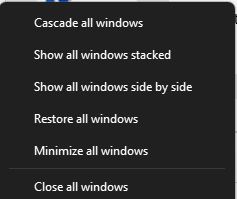
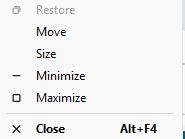
I always combine my icons in the taskbar.  When I shift right + click on a combined icon in the taskbar which has multiple occurrences of the app in it, I get the following popup.
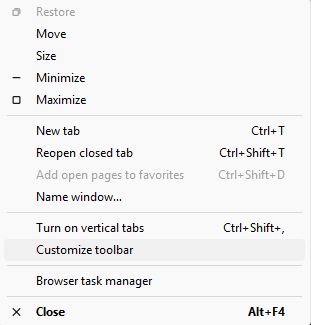
If I turn on the option in Start 11 to enhance the taskbar and tell it to always combine icons in the task bar and then right+click on a combined icon in the task bar, I get the following popup.
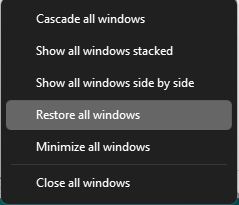
In Start11, how can I get the popup from the first image?

Thanks,

Bill


2,792 views 22 replies
Reply #1 Top

Hello,
I have forwarded your request to the Stardock Support Team for their review and recommendations. Please keep an eye on this thread for any updates. We really do appreciate your feedback, Thanks

Basj,
Stardock Community Assistant.

Reply #3 Top

Helloo again,

Unfortunately, there is nothing to report on this one.

Thank you,

Basj,

Stardock Community  Assistant

Reply #4 Top

Hi Bill, thank you for posting.

Quoting BillH99999,

In Start11, how can I get the popup from the first image?

End of BillH99999's quote

The simple answer to this question, seems to be by hovering over the combined icons for the thumbnail preview.  From there, you can right-click an individual thumbnail preview for the per-window options of your first image.  

Please let us know if this helps and if you have any other questions.

Best regards,

Adam McGuinness
Stardock Support Specialist

Reply #5 Top
Quoting Abisnabidam, reply 3993668

Hi Bill, thank you for posting.


Quoting BillH99999,

In Start11, how can I get the popup from the first image?

End of BillH99999's quote

The simple answer to this question, seems to be by hovering over the combined icons for the thumbnail preview.  From there, you can right-click an individual thumbnail preview for the per-window options of your first image.  

Please let us know if this helps and if you have any other questions.

Best regards,

Adam McGuinness

Stardock Support Specialist

End of Abisnabidam's quote

I didn't say it very well, but I really was just trying to say that I always turn on the option to combine icons in the taskbar.  I still have a problem in that this method doesn't work on icons that are not combined.  I need to be able to access this menu on non-combined icons also.  It works fine in Windows 11  if I turn off "let start11 enhance the taskbar", but not if I turn that on.  How can I get this menu back on non-combined icons?  Start11 should not take away a function of Windows 11 like this.

Reply #6 Top

I guess I've given up on any reply to this issue or any fix for it.   I am uninstalling Start11 and reverting to the native Windows start menu and taskbar.

Reply #7 Top

Hello,

I’m sorry to hear that the workaround we provided didn’t meet your expectations and that you’ve decided to revert to the native Windows menu. We truly appreciate the time you’ve spent sharing your feedback and working with us on this issue.

Your input is valuable, and even if this solution wasn’t the right fit, it helps us understand where improvements are needed. Should you decide to give Start11 another try in the future, our team will be here and ready to assist further.

Thank you again for being a customer and for letting us know your experience.

Basj, Stardock Community Assistant

Reply #8 Top

Unfortunately, as I said on April 10, this did not solve the problem for icons in the tray that are not combined.  The shift + right click menu is still incorrect for these instances.

Reply #9 Top

This has been added to the list to investigate for the next S11 update.

Reply #10 Top

We have looked into this further.

It looks like this is a difference in behaviour that slipped into a later Windows 11 build.  We follow the Win10 convention which is that menu as it offers things you cannot do with the later Win11 builds.

We shall look into adding a setting to control which menu you want as this is neither wrong or right as some users will want one and others another.

Reply #11 Top

I'm not sure it did slip in with a later Windows 11 build.  It always worked for me in Win10 and Win 11.  In any case it would be nice to have such an option.  

Reply #12 Top

Hello again, 

We now have a beta version available that addresses this.  For details and feedback, please see:

Start11 v2.73 Beta Feedback - Stardock Forums

Thank you and best regards,

Adam McGuinness
Stardock Support Specialist

Reply #13 Top

Thanks for the quick beta.  This is better, but still not what Windows does.  Windows does it by just Shift + Right Click.  I'm just wondering why this was implemented as "hover over the icon and right click" rather than Shift + Right Click.

Reply #14 Top
Quoting BillH99999, reply 3994881

Thanks for the quick beta.  This is better, but still not what Windows does.  Windows does it by just Shift + Right Click.  I'm just wondering why this was implemented as "hover over the icon and right click" rather than Shift + Right Click.

End of BillH99999's quote

I think there is some confusion here?

Right click over the icon produces the jump list.

SHIFT + right click on the icon produces the menu we have been talking about.

Note it is the ICON not the popup thumbnails window.

Reply #15 Top
With Start 11 when I shift + right click on the icon I get this menu:
With Start 11 when I hover over the icon and right click on the preview window I get this menu:
The second menu with Move, Size, Minimize, Maximize, Close is the menu I get when I shift + right click on the icon without Start 11.
Reply #16 Top

I don't think you have applied the registry key in the new build as without that nothing will have changed.

Reply #18 Top
Quoting BillH99999, reply 3994889

I'm not sure what you mean.  I installed the 2.7.3 beta.  What else do I have to do?

End of BillH99999's quote

This beta version includes support for a new registry key, but it still needs to be added manually using Windows' Registry Editor.  

The registry path to add it is: 

HKEY_CURRENT_USER\SOFTWARE\Stardock\Start8\Start8.ini\Start8

Where you'd add the new string of: 

S11_UseWin11RightClickOnGroups

Then, it can be turned on by giving it a value of "1", and off with a value of "0".  You may also need to log out and back into Windows for the change to register.

Start Menu Products Registry Settings - Documentation - Stardock Help Center  

Best regards,

Adam McGuinness
Stardock Support Specialist

Reply #19 Top

I see.  Unfortunately I am a 75 year old semi technical user not a computer expert.  I don't edit my registry.  Couldn't this be added as an option instead of a manual registry edit?  

Reply #20 Top
Quoting BillH99999, reply 3994892

I see.  Unfortunately I am a 75 year old semi technical user not a computer expert.  I don't edit my registry.  Couldn't this be added as an option instead of a manual registry edit?

End of BillH99999's quote

I agree it is a bit technical.  To make it easier, you can download this folder, with two batch files that can be run to enable or disable the feature:

Best regards,

Adam McGuinness
Stardock Support Specialist

Reply #21 Top

I think that I will just move on.  I'm sure there are a lot of non-technical users of Start11.  It doesn't seem right that you would remove a function of Windows and then require users to go through these hoops in order to bring back that functionality.  I said a couple days ago that I was thinking about reverting to the Windows start menu and task bar.  I waited when I saw there was a fix in the beta.  After seeing what that fix is I think I will just go ahead and uninstall Start 11.  I will say it is a great product, but this solution is not for me.  Thanks for all your help.

Reply #22 Top
Quoting BillH99999, reply 3994897

I think that I will just move on.  I'm sure there are a lot of non-technical users of Start11.  It doesn't seem right that you would remove a function of Windows and then require users to go through these hoops in order to bring back that functionality.  I said a couple days ago that I was thinking about reverting to the Windows start menu and task bar.  I waited when I saw there was a fix in the beta.  After seeing what that fix is I think I will just go ahead and uninstall Start 11.  I will say it is a great product, but this solution is not for me.  Thanks for all your help.

End of BillH99999's quote

That's perfectly understandable.  For some added context on this particular issue, as Neil said before:

Quoting Neil, reply 3994752

It looks like this is a difference in behaviour that slipped into a later Windows 11 build.  We follow the Win10 convention which is that menu as it offers things you cannot do with the later Win11 builds.

We shall look into adding a setting to control which menu you want as this is neither wrong or right as some users will want one and others another.

End of Neil's quote

That is what we are doing by putting this out in the beta.  I only want to assert that we're always open to feedback as the development continues.  It's understandable if it just isn't working out for you in the current state, and we'll continue working on it.

Thank you for working with us and providing your input.

Best regards,

Adam McGuinness
Stardock Support Specialist