Application Bar problem at StartUp

When Windows starts up, the toolbar does not appear when you move the mouse, probably because the toolbar window is hidden behind the programmes that Windows automatically opens in full-screen mode.

The only ways to open it are:

  1. Using the Windows key opens both the Start menu and the taskbar
  2. Minimise all programmes open in full-screen mode (including via Windows-D) so that no window covers it

Settings Start 11 Tools Bar

  • Icon size 24 px
  • Button Width 44 px
  • Button Height 40 px
  • Autohide on
  • 2 icon rows
256 views 5 replies
Reply #1 Top

Hello,

Sorry to hear you are having issues. Need more information.

  1. Windows 11 full version and OS Build number. Please use Winver.exe to get these numbers.
  2. Start11 full version number installed.
  3. What application load full screen mode on Start up?
  4. Video showing us the issue might also help us understand it better.

Thank you,

Basj,

Stardock Community  Assistant.

Reply #2 Top

> Windows 11 full version and OS Build number. Please use Winver.exe to get these numbers.

25H2 build 26200.8524

> Start11 full version number installed.

2.72

> What application load full screen mode on Start up?

Settings > Accounts > Sign-in options > Additional settings > Automatically save my restartable apps and restarted […]

(typically → Edge, Phone Link, Outlook, Notepad, Notepad++, OneNote, Settings)

> Video showing us the issue might also help us understand it better.

Sec. 6: Mouse on the bottom (no application bar).

Sec. 10: Move the mouse to the bottom of the secondary window to view the application bar.

Sec. 20-22: Minimize Windows

Sec. 24: Hover over the bottom of the screen to view the application bar.


Reply #3 Top

Thank you for the video, but, unfortunately, I can not view it. Please upload it to any video sharing site such as Youtube and share its link here.

Thank you,

Basj,

Stardock Community  Assistant

Reply #5 Top

That work, thank you.

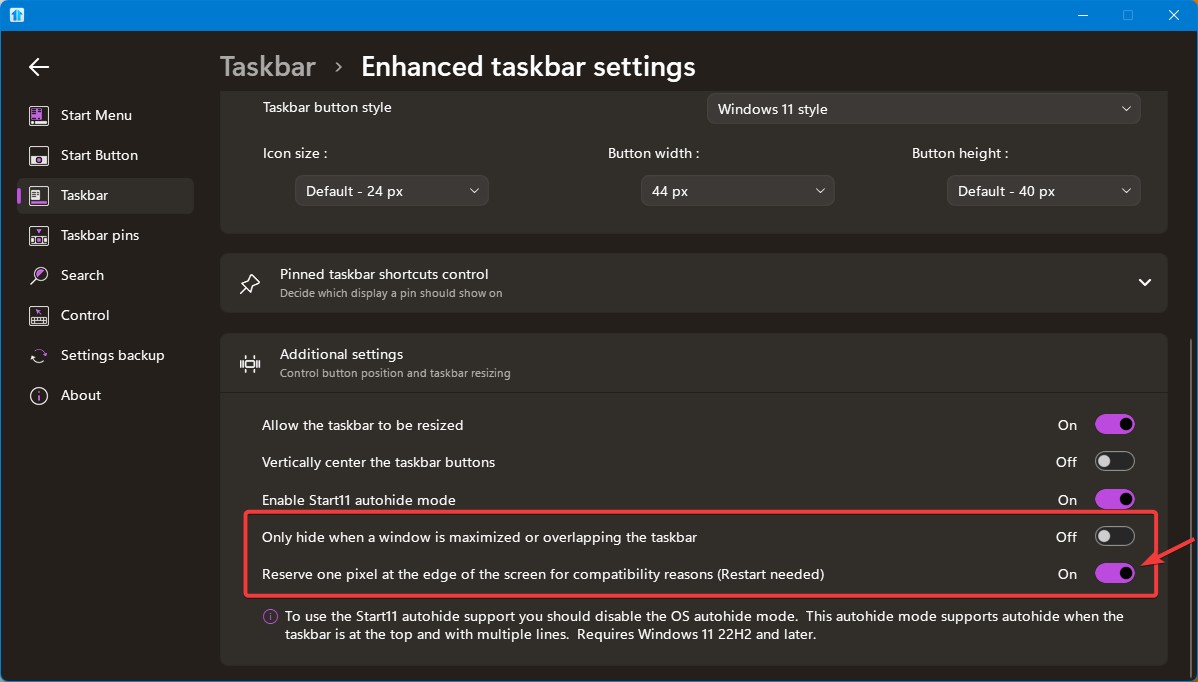
Have you tried adjusting these settings? Also, make sure Windows taskbar setting on autohide is disabled.

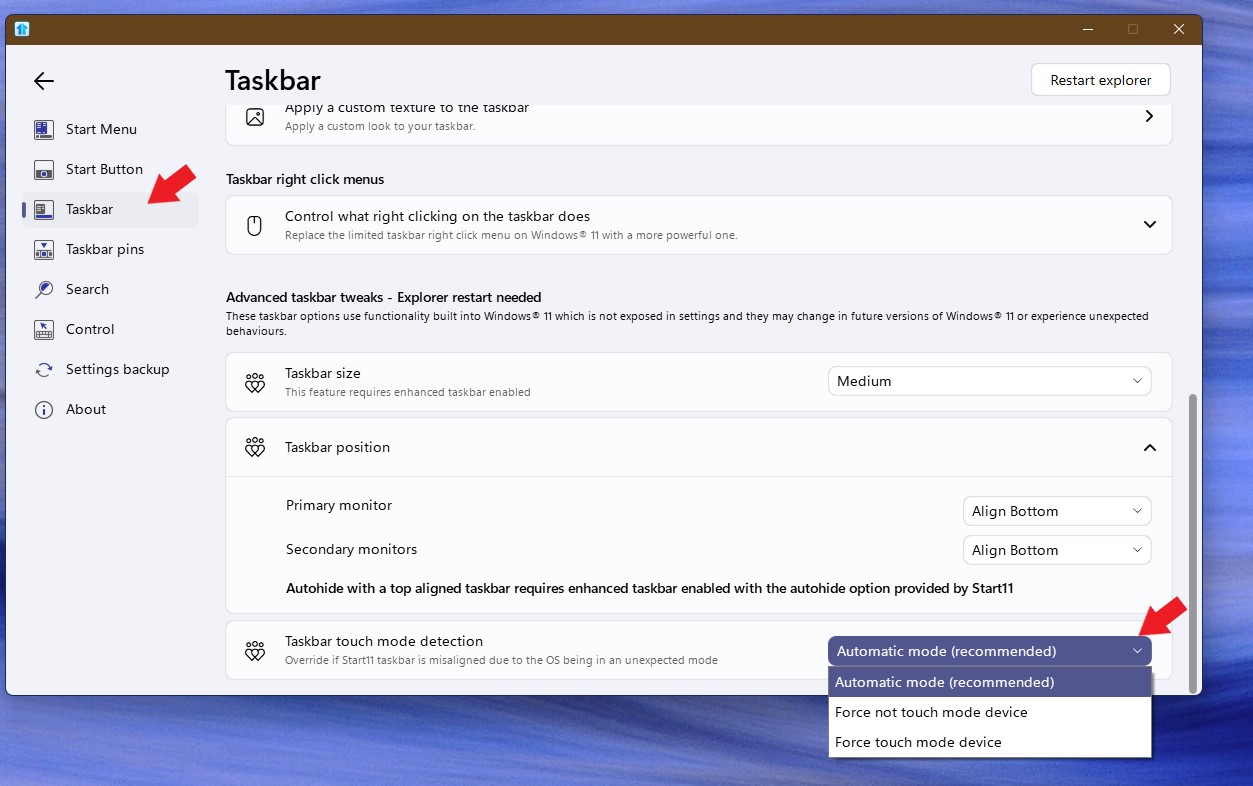
Also, if you on touch capable device, perhaps adjusting these setting might help.

Thank you,

Basj,

Stardock Community  Assistant